X-Serve Connect
X-Serve Connect is a beta connector that puts X-Serve behind a VS Code extension: paste an API key once, pick a model, and it opens a Claude Code terminal session wired up to X-Serve. No copying environment variables into terminal tabs by hand.
What You'll Need
- VS Code
1.95.0or later, on macOS or Linux. - Claude Code installed and on your
PATH. - An active X-Serve API key from the X-Serve Console.
- A project folder open in VS Code.
Step 1: Install the Extension
- On the Console's Coding Agents page, switch the client picker to VS Code and make sure Claude Code is installed locally. The page then offers Download for VS Code.
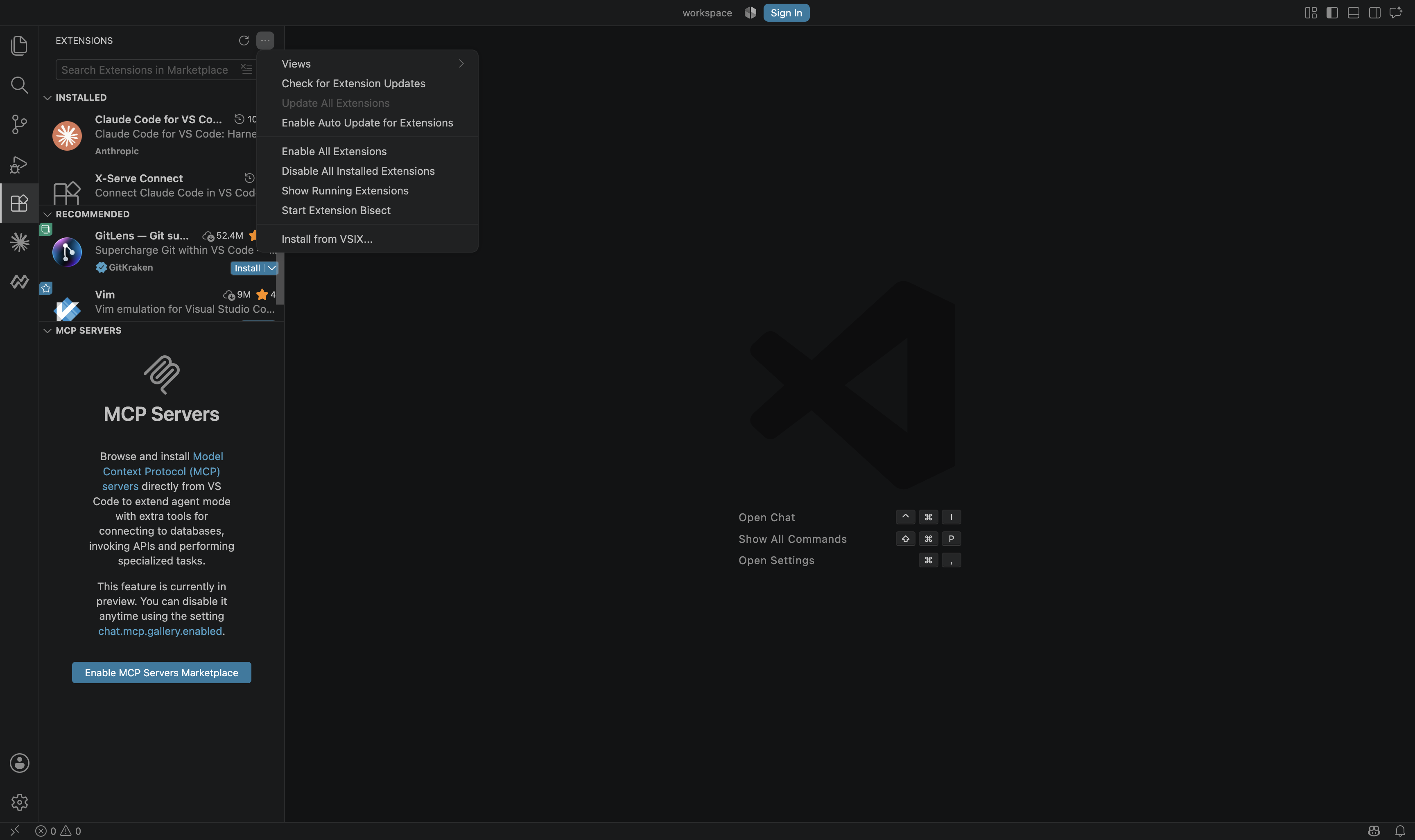
- In VS Code, open the Extensions view.
- Select the
...menu, then Install from VSIX.... - Select the downloaded
netpreme-connect-vscode.vsixand reload VS Code if prompted.
Step 2: Connect Claude Code
- Open the X-Serve icon in the VS Code Activity Bar.
- Select Connect Claude Code.
- Paste your X-Serve API key into the protected input.
- Select a model from the list.
- X-Serve Connect validates the route and opens a new Claude Code terminal session for the current workspace.
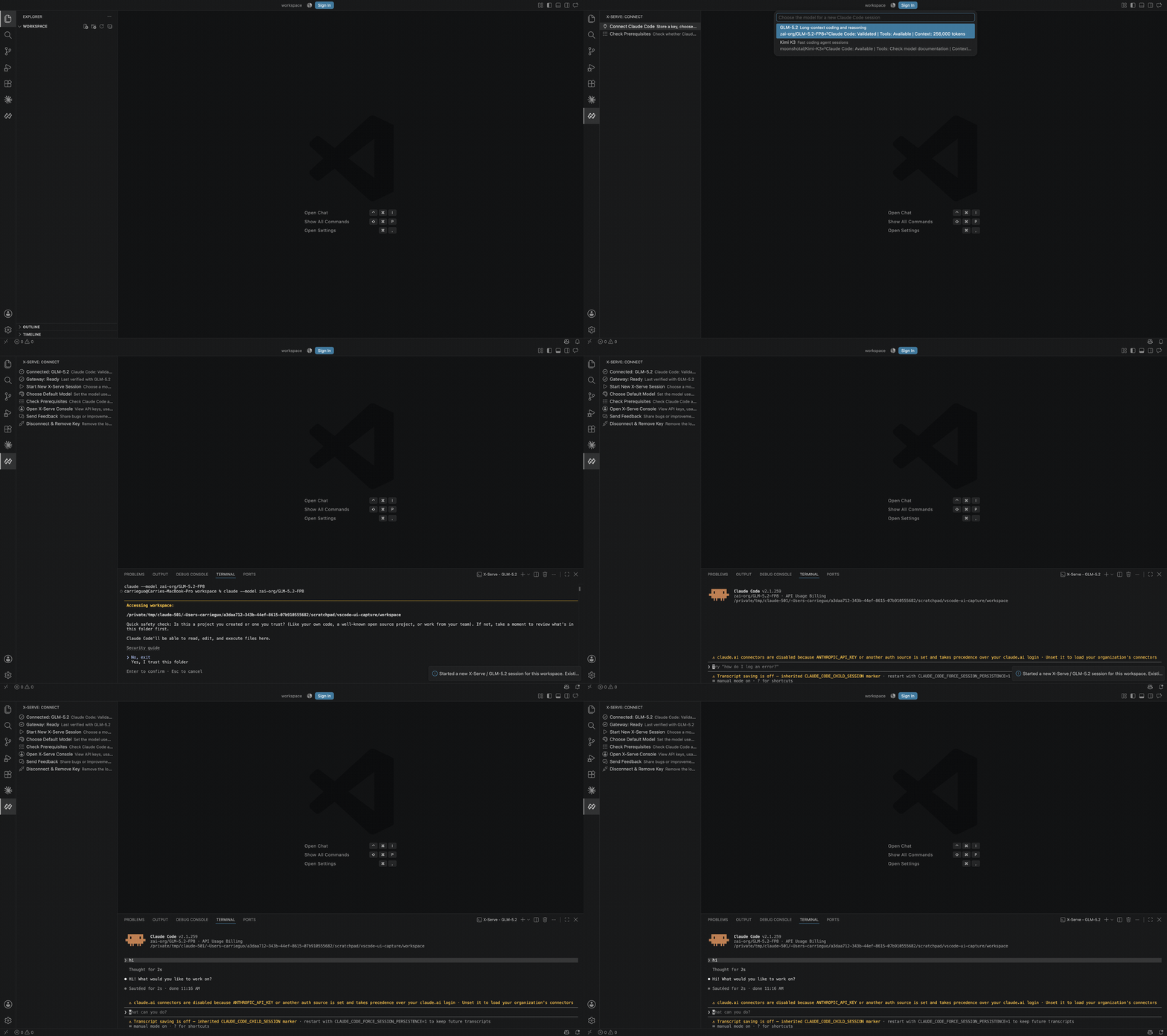
That new session never replaces or migrates an existing conversation.
The API key is stored only in VS Code Secret Storage on the local device. It's
never written to ~/.claude/settings.json, a shell profile, the workspace, or
source control. The extension leaves the workspace's own Claude Code setup
untouched: same files, Git state, and project instructions it already had
open.
Step 3: Everyday Use
Once connected, the X-Serve panel adds a few more entries:
| Command | What it does |
|---|---|
| Start New X-Serve Session | Select a model and launch another session using the saved key. |
| Choose Default Model | Set the model used the next time you start a session. |
| Check Prerequisites | Verify Claude Code, the stored key, the model catalog, and the selected model route. |
| Open X-Serve Console | Open the Console for API keys, usage, credits, and account details. |
| Send Feedback | Open the Console and copy a safe diagnostic tag for a bug or feedback report. |
| Disconnect & Remove Key | Remove the locally stored key for future X-Serve sessions. |
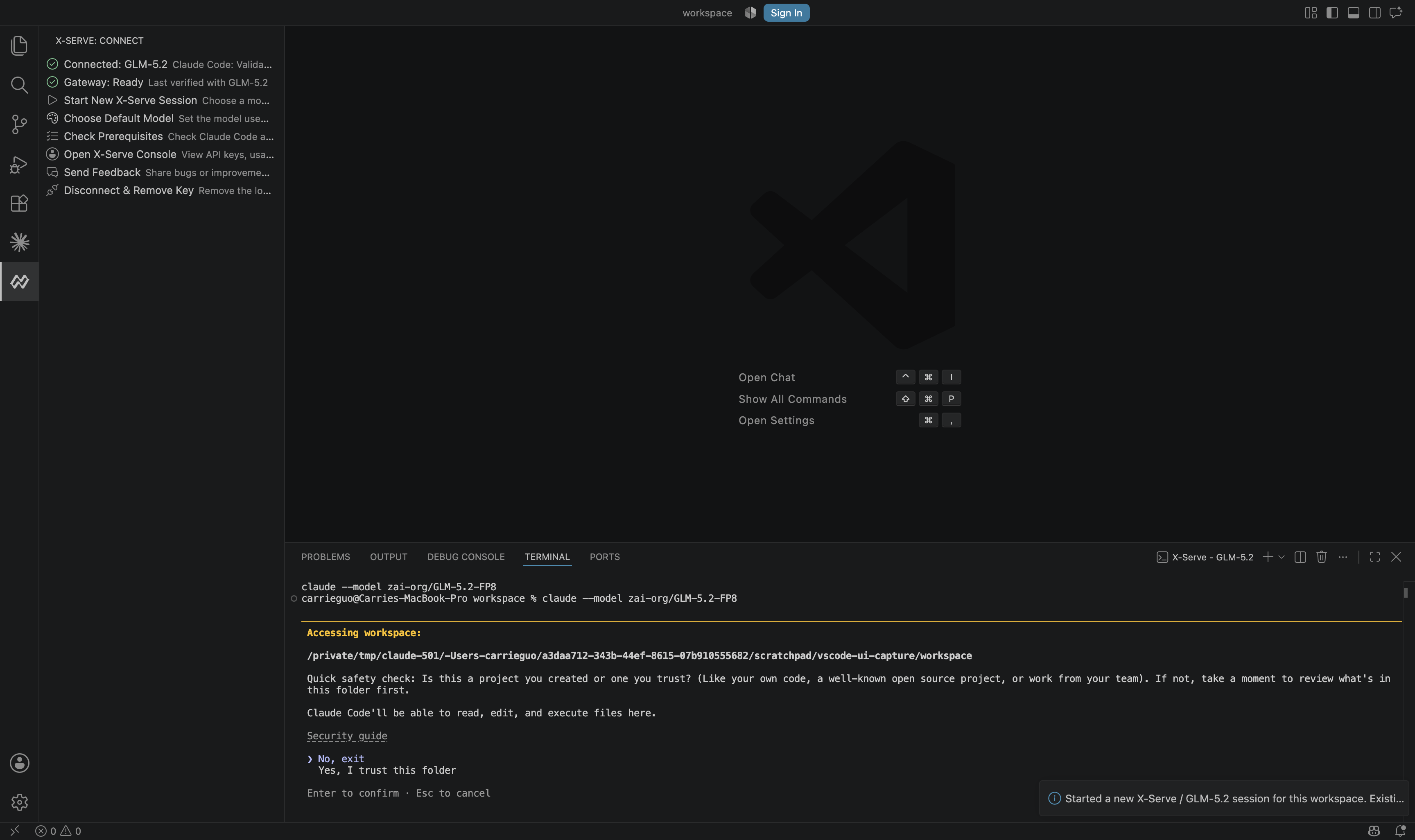
Run Check Prerequisites any time something feels off. A missing Claude Code install, an expired key, or an unavailable model each show up as their own message with a next step, not a generic failure.
Disconnect & Remove Key only removes the saved key for future sessions. It does not close sessions that are already open, and does not touch existing conversation history, project files, or your normal Claude Code settings. To stop a session that's already running, close its terminal. To invalidate the key immediately instead of just removing it locally, revoke it in the Console.
Feedback
Select Send Feedback to open the X-Serve Console and copy a diagnostic tag containing the extension version, selected model, and Gateway status. Paste it into the Console Feedback or Bug sidebar along with a description. The tag never includes an API key, prompt, source code, or workspace path.
More coding agents, coming next X-Serve Connect currently supports Claude Code in VS Code. Tell us which agent you use most, such as Cursor, Windsurf, Cline, or another tool. We are actively working to bring support for additional agents.
FAQ
Does this replace the manual environment-variable setup on the Harness Integration page?
No. [Harness Integration](coding-agents.md) still applies for Codex, pi, Hermes, and any workflow outside VS Code. X-Serve Connect's VS Code extension only targets Claude Code.See Also
- Harness Integration for manual setup across Claude Code, Codex, pi, and Hermes.
- Models for what each model supports.